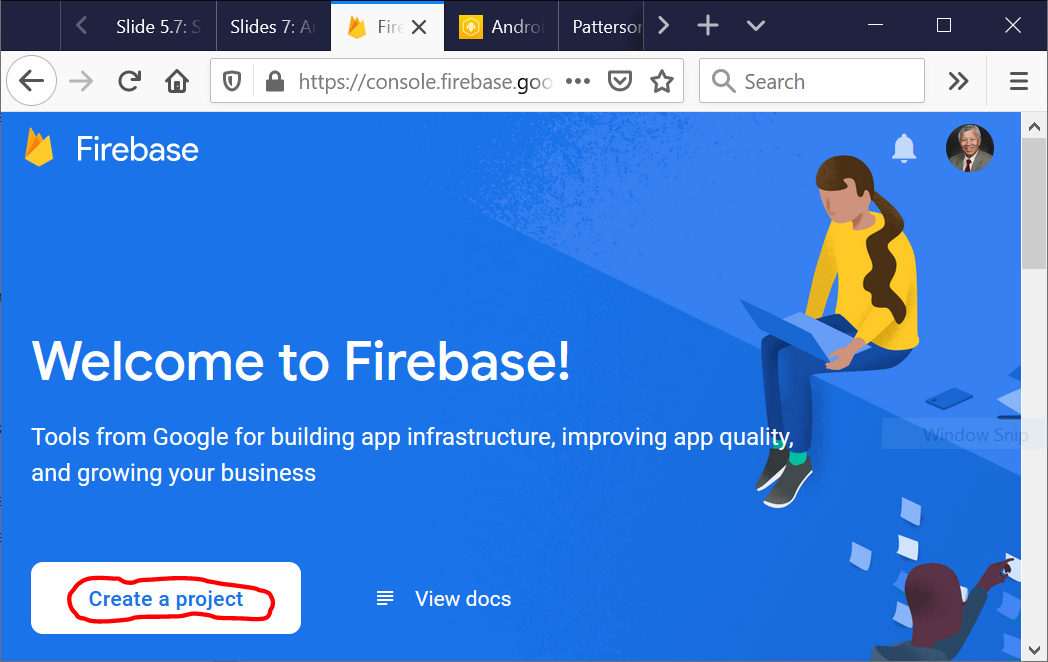
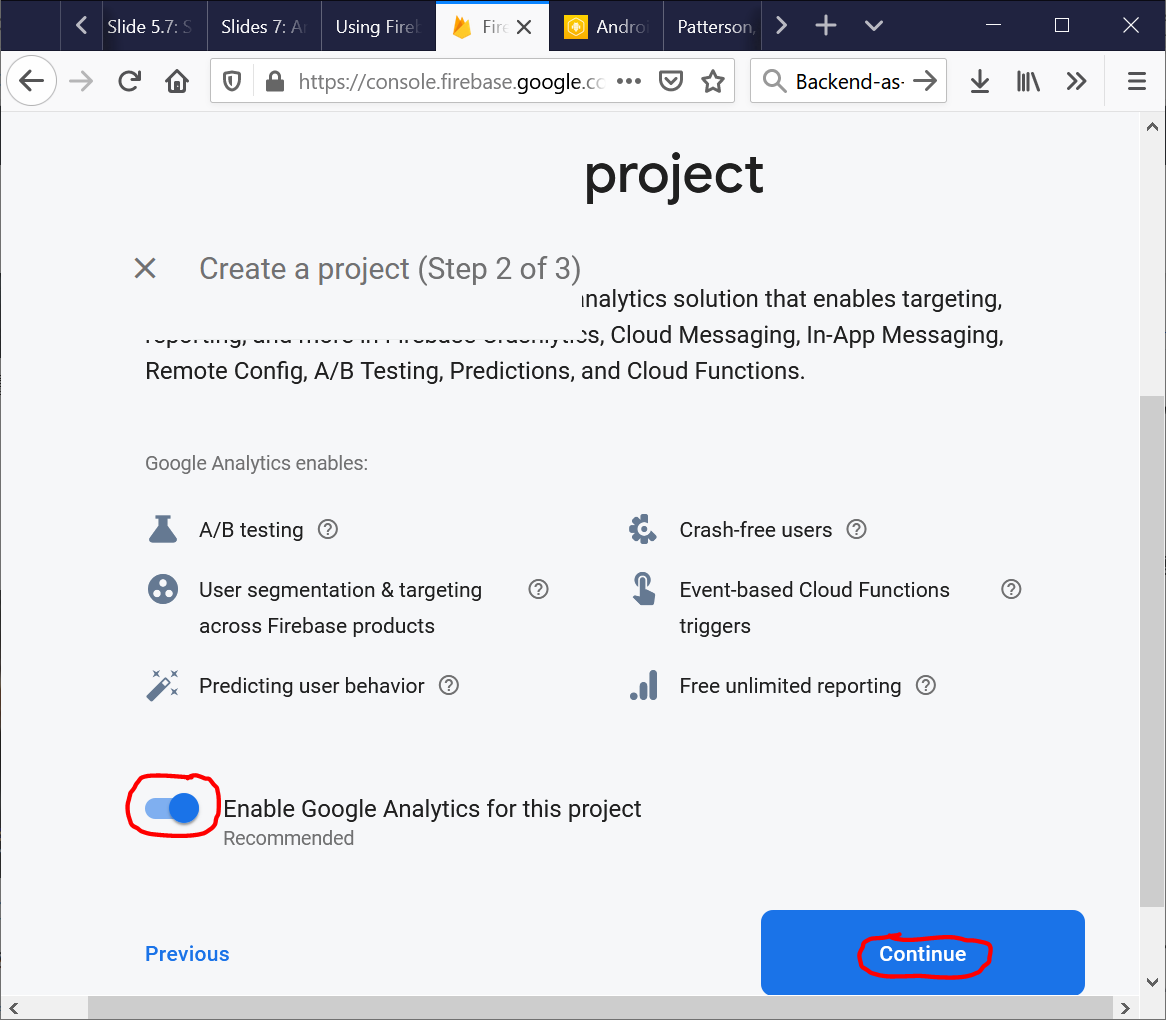
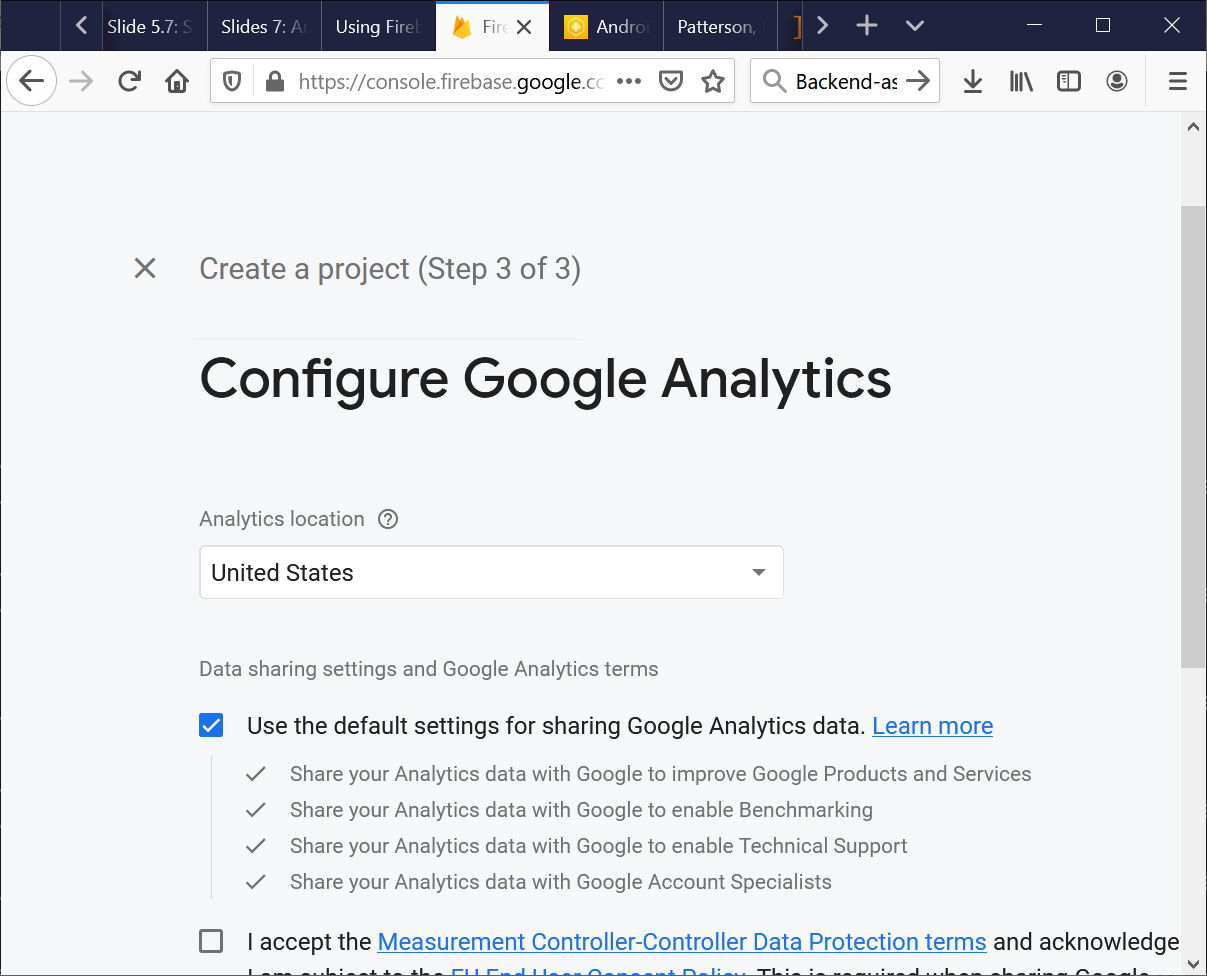
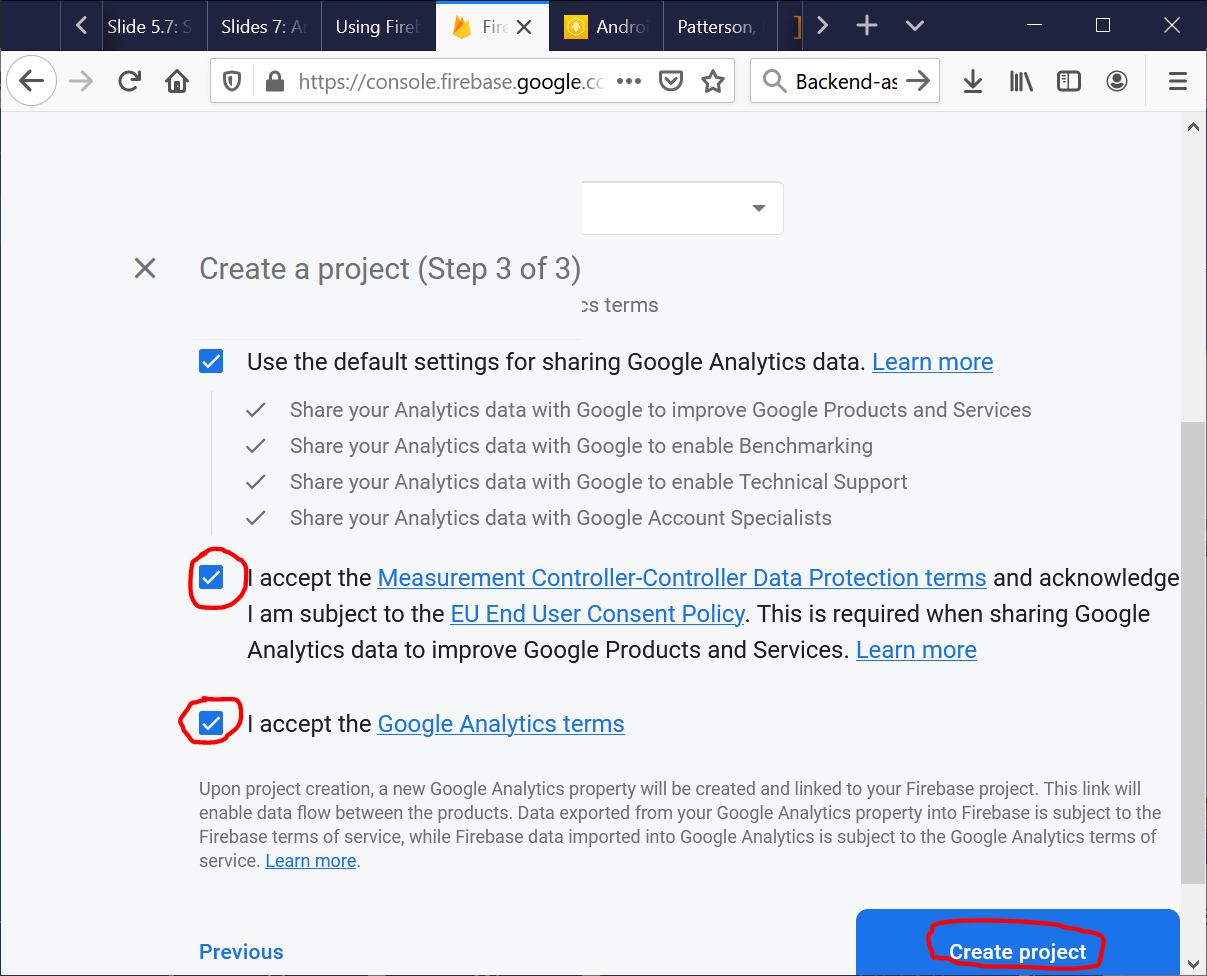
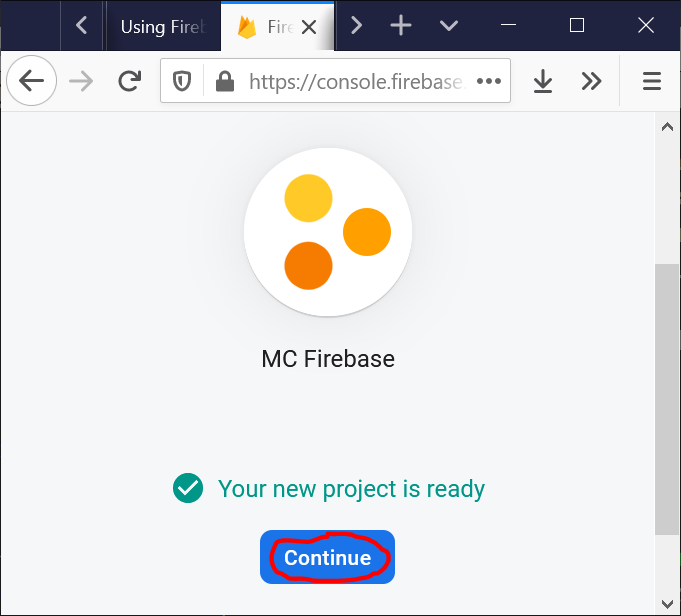
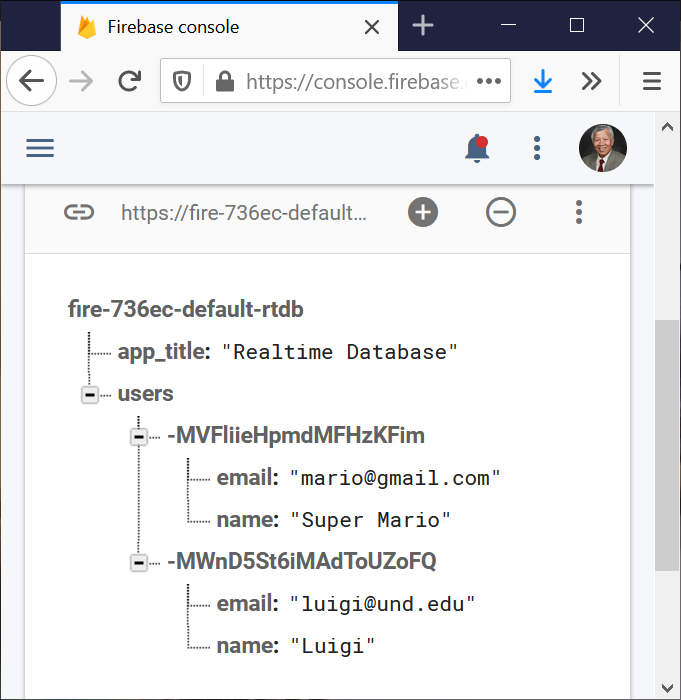
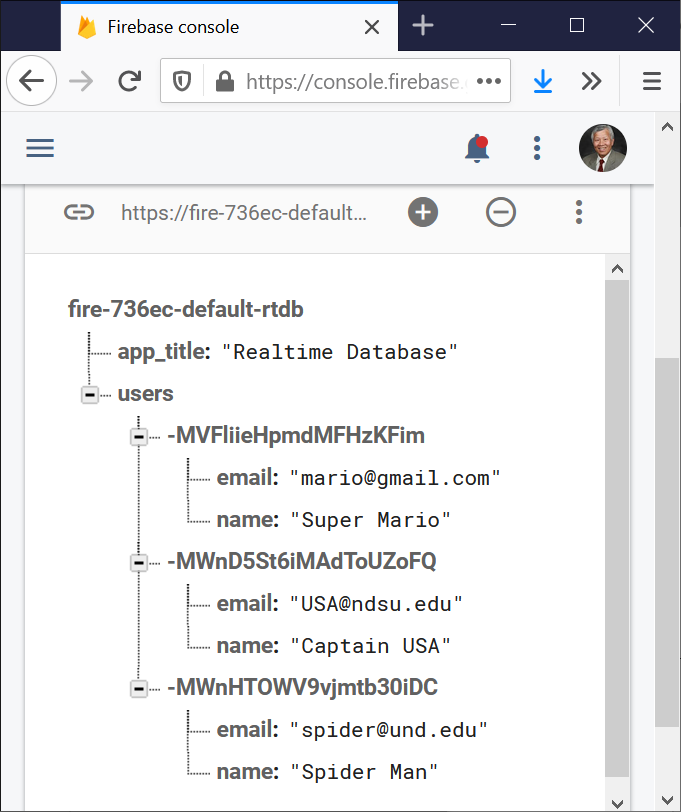
The Firebase database is a NoSQL, real-time, and cloud-hosted database.
Data is stored as JSON and synchronized in real-time to every connected client.
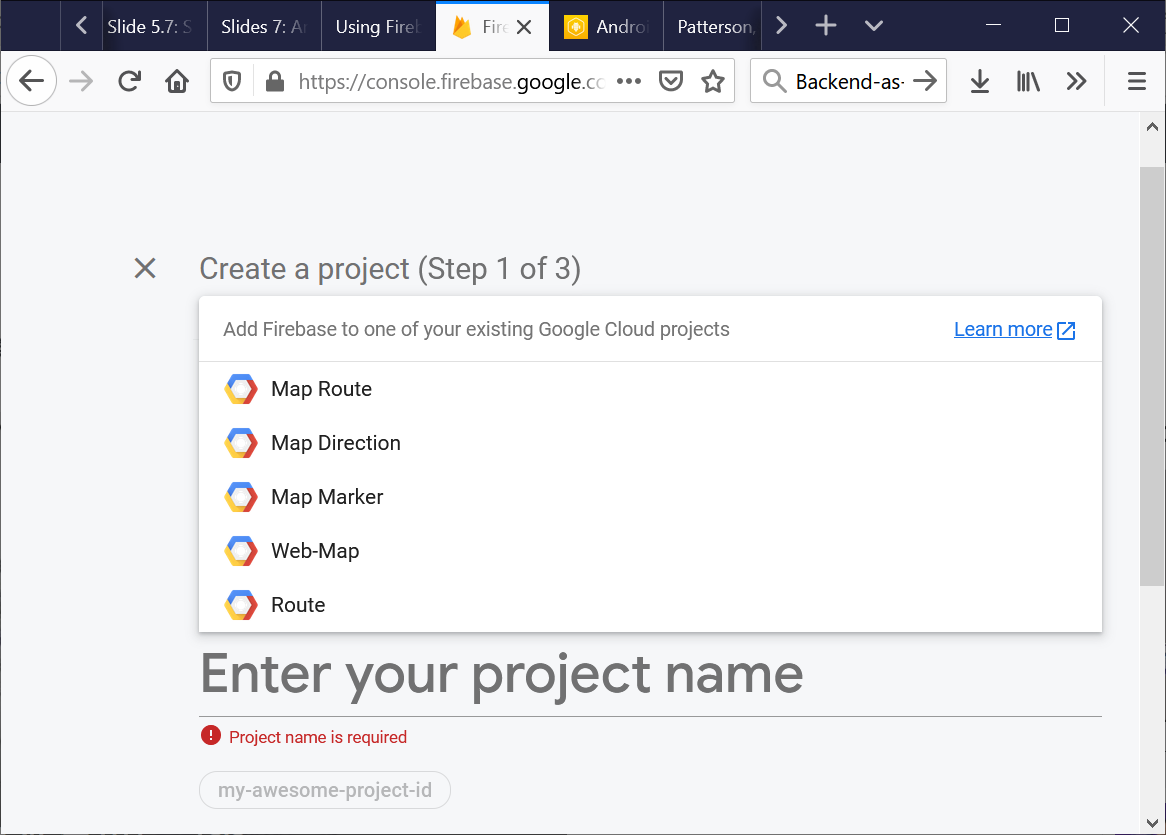
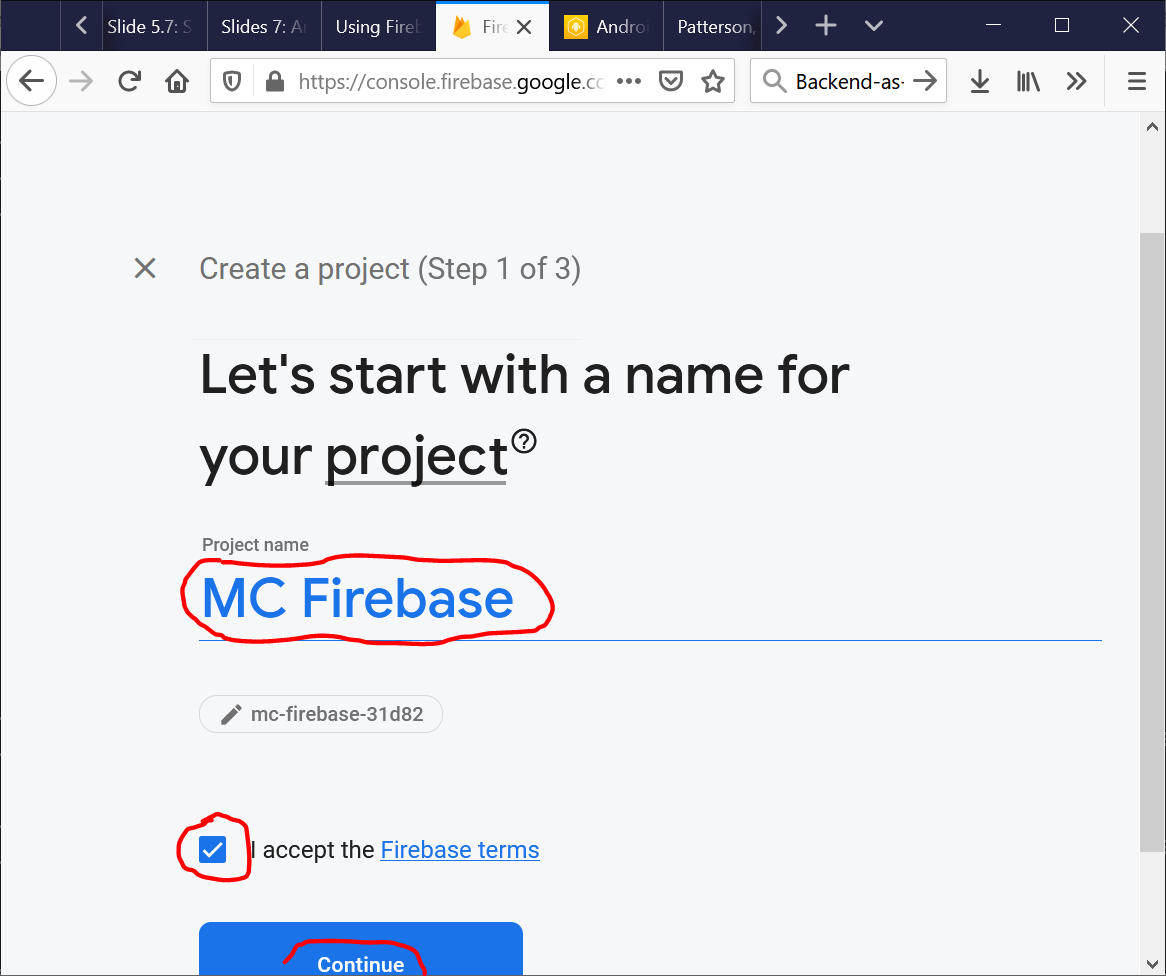
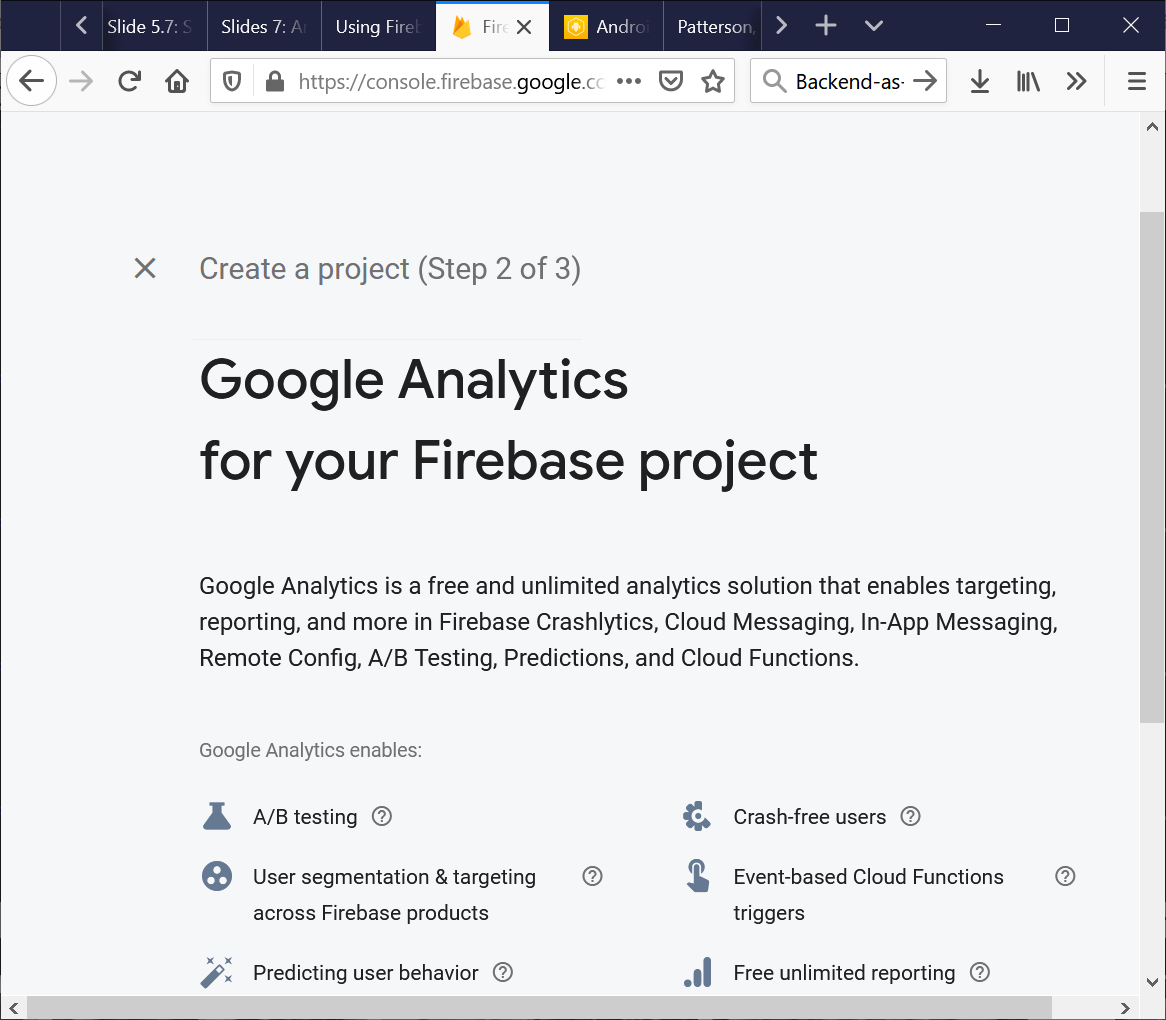
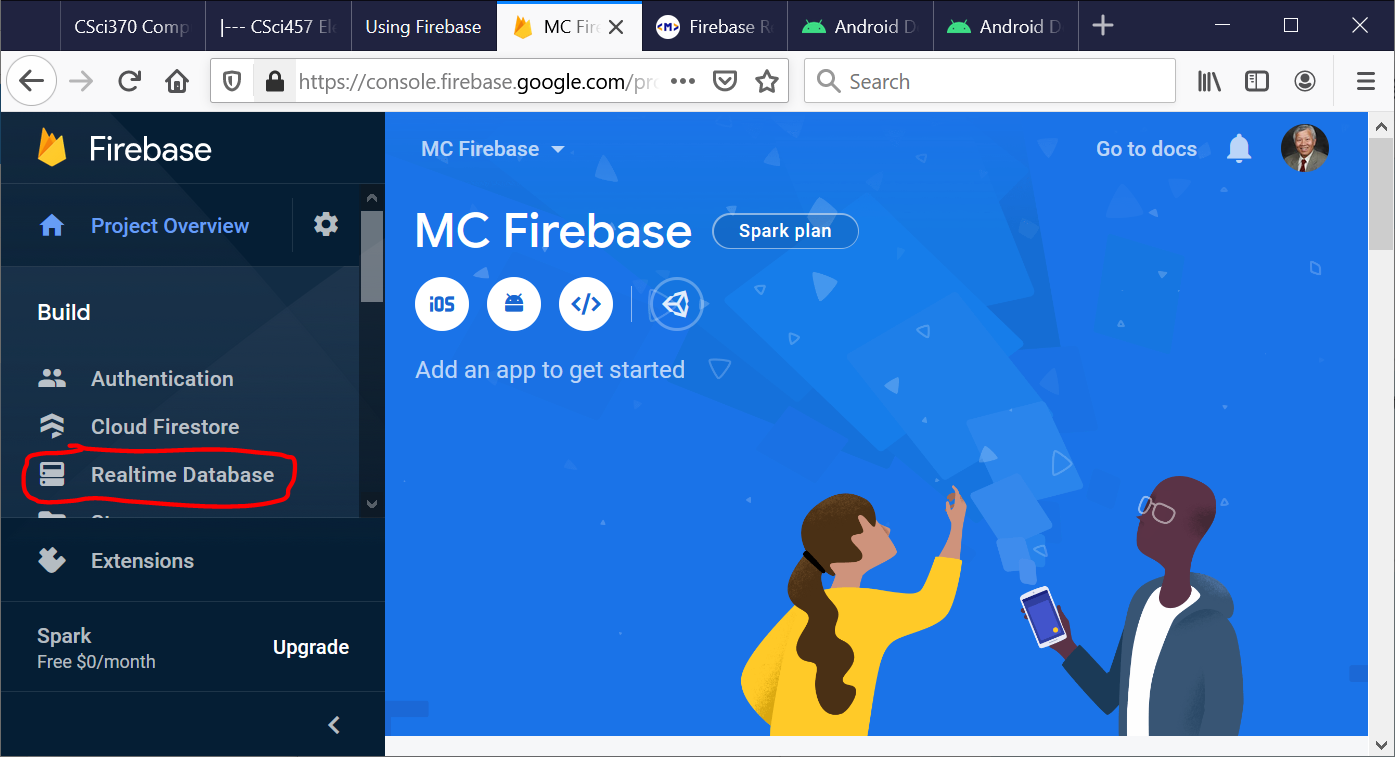
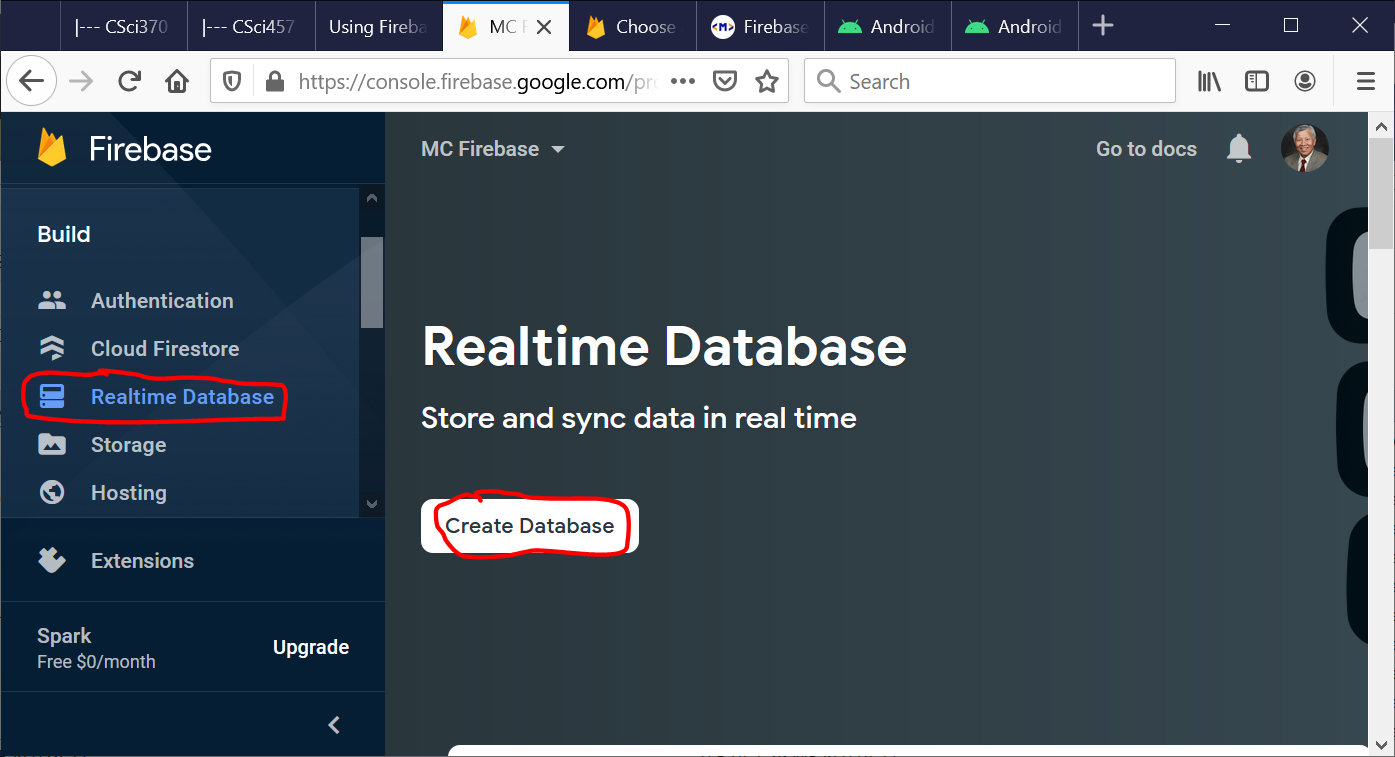
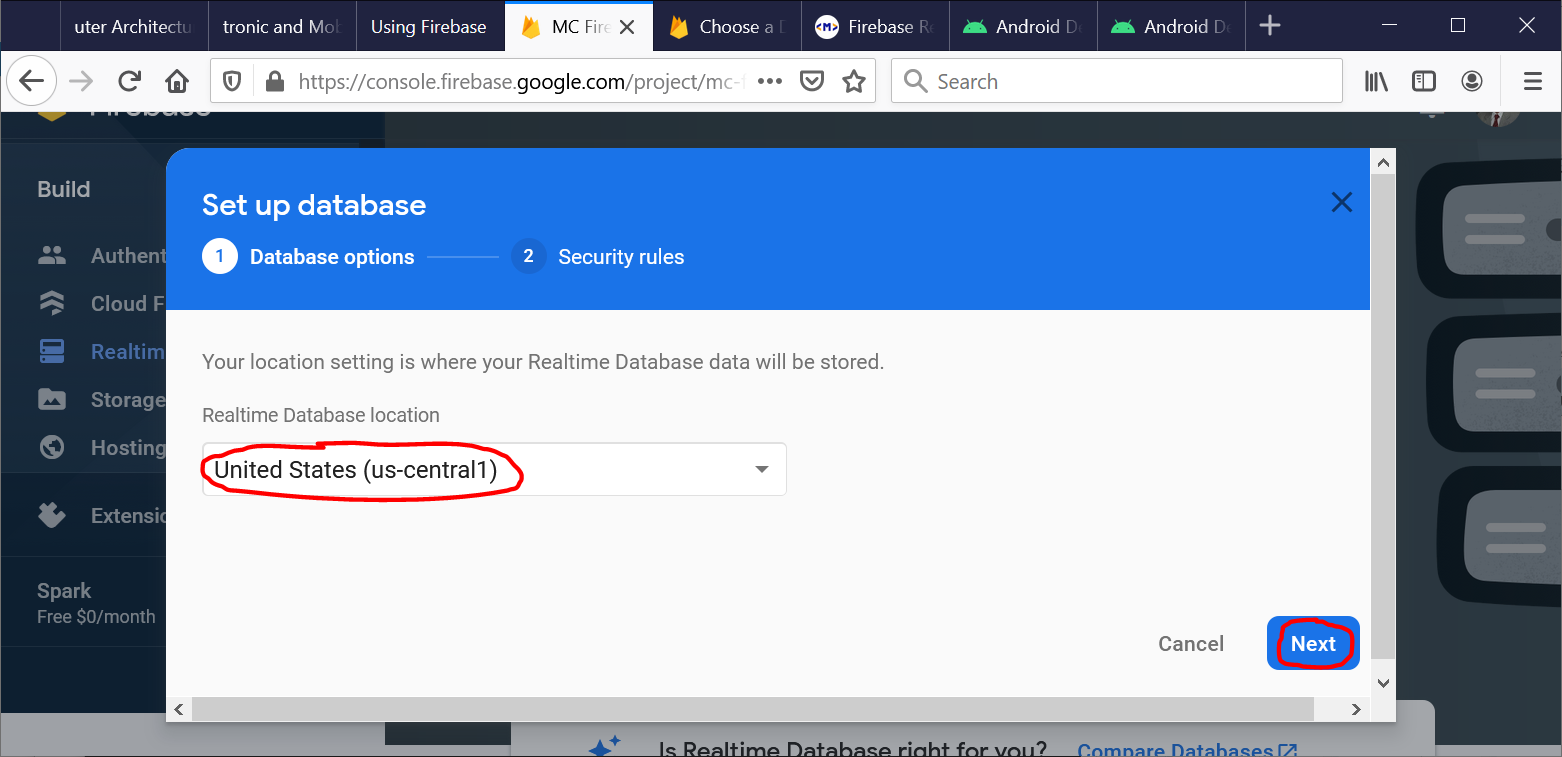
The following steps show how to use the Firebase database:
The Android and Firebase code given in this course is correct, but it may not work for current SDK or API because of the backward compatibility issue.
You should be able to fix it by checking the error messages.
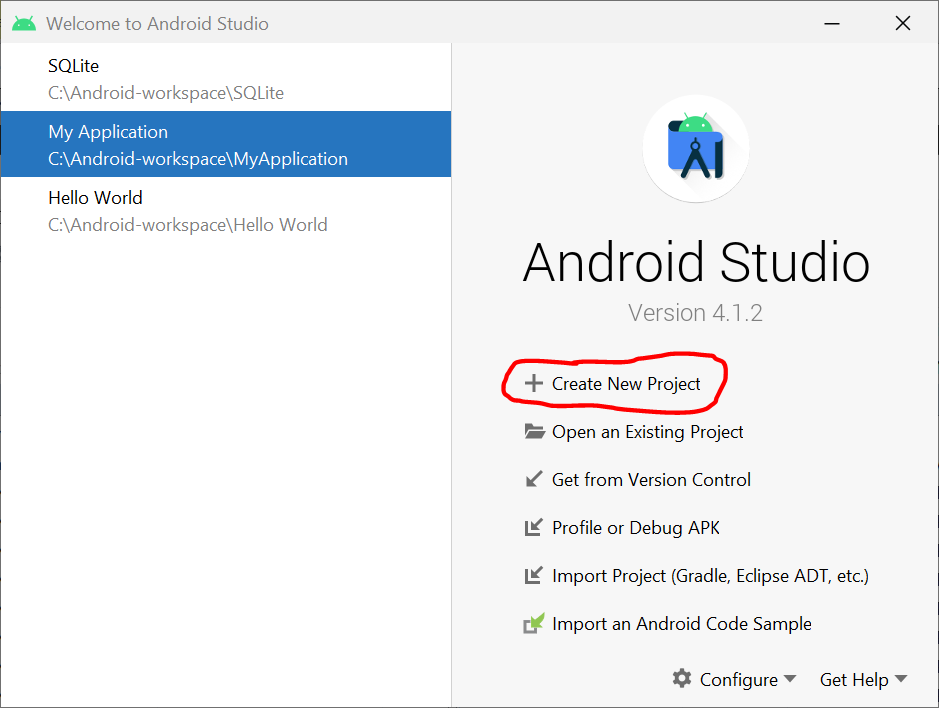
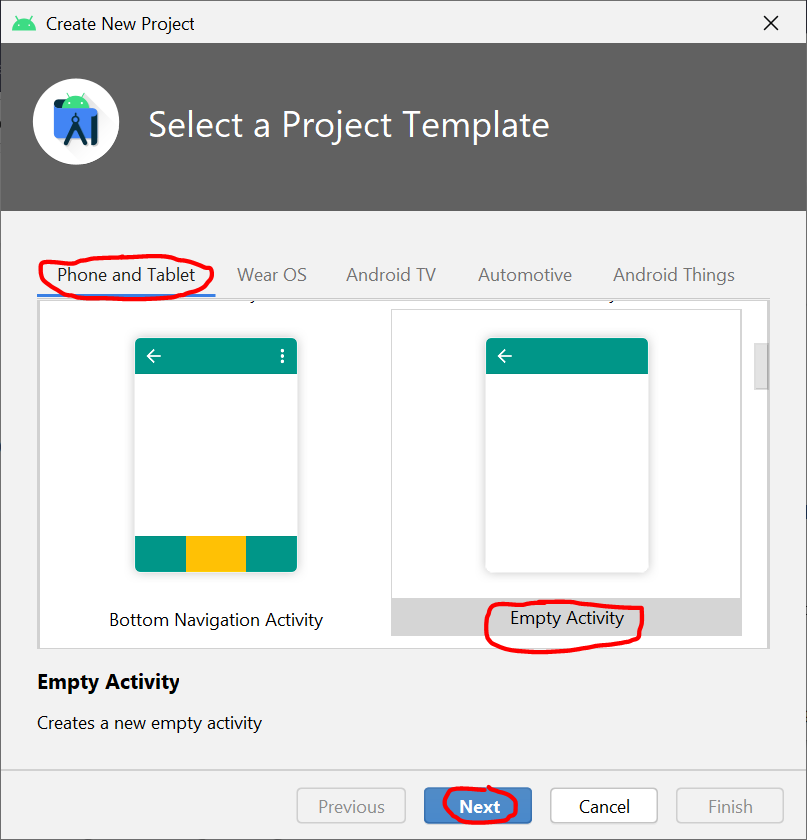
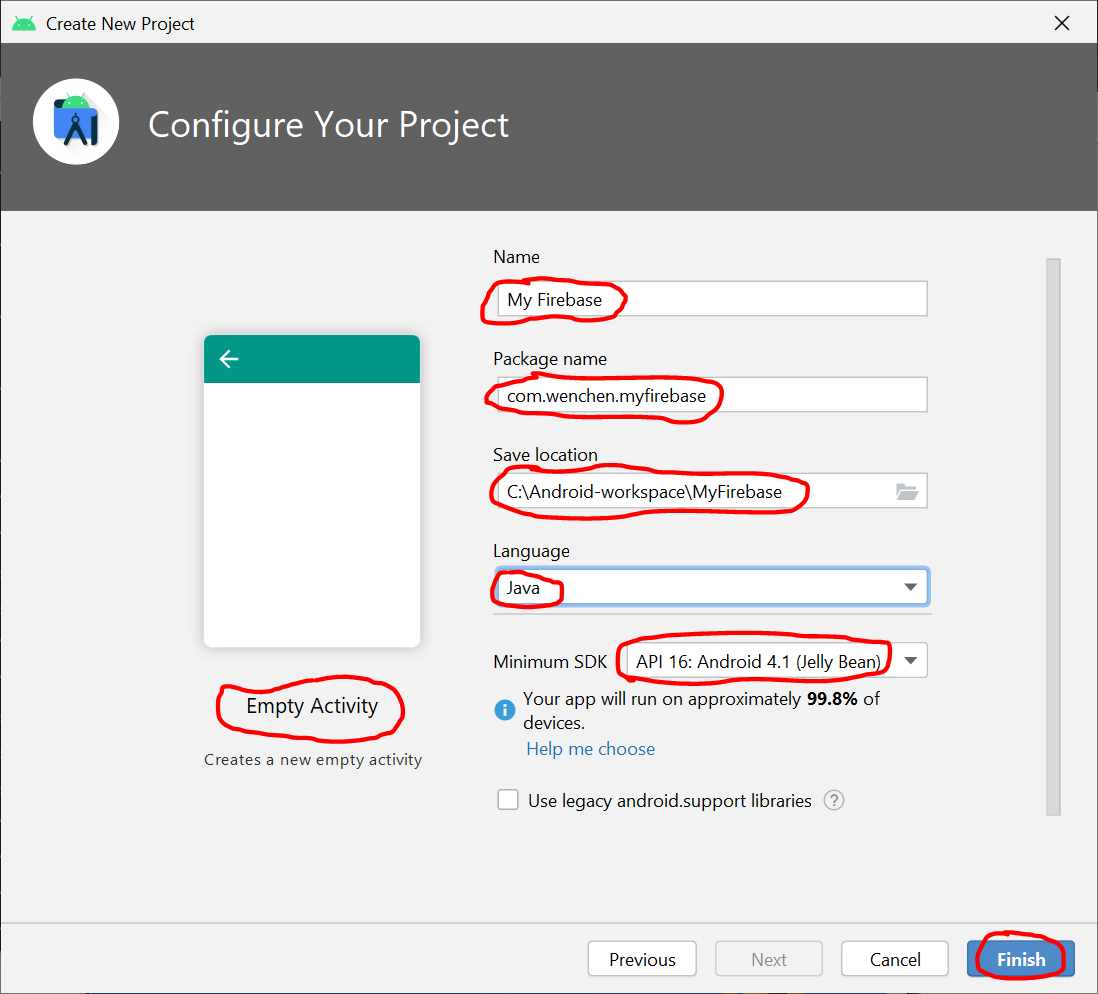
Open Android Studio and create a new project or open an existing project.
†Pick (instead of ) if Java is used.
🡆
🡆
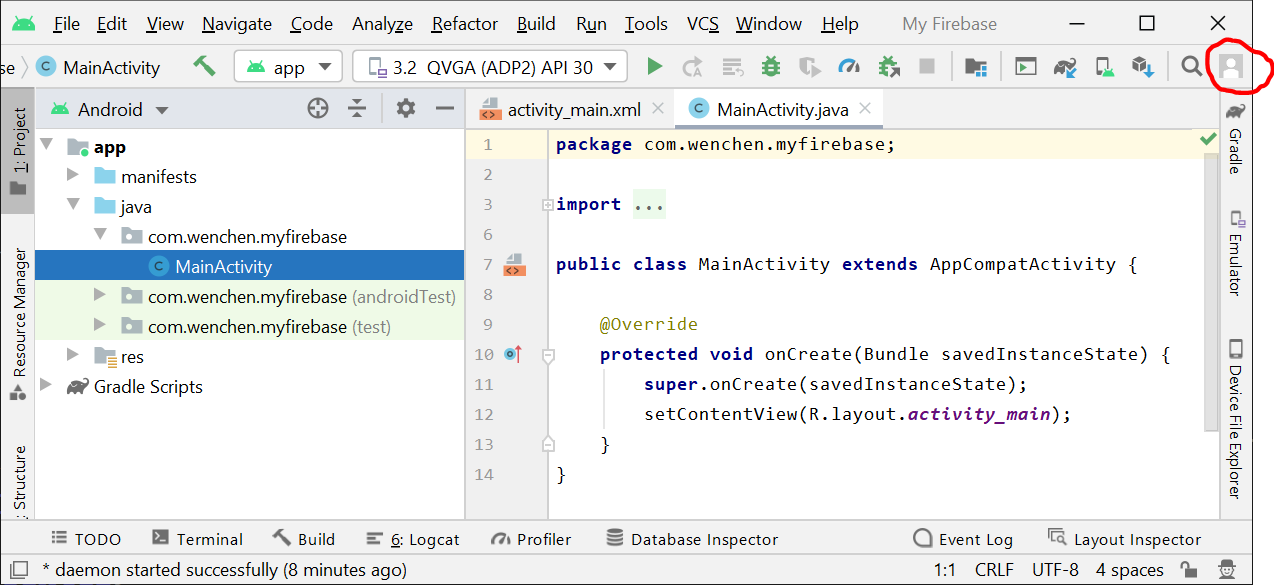
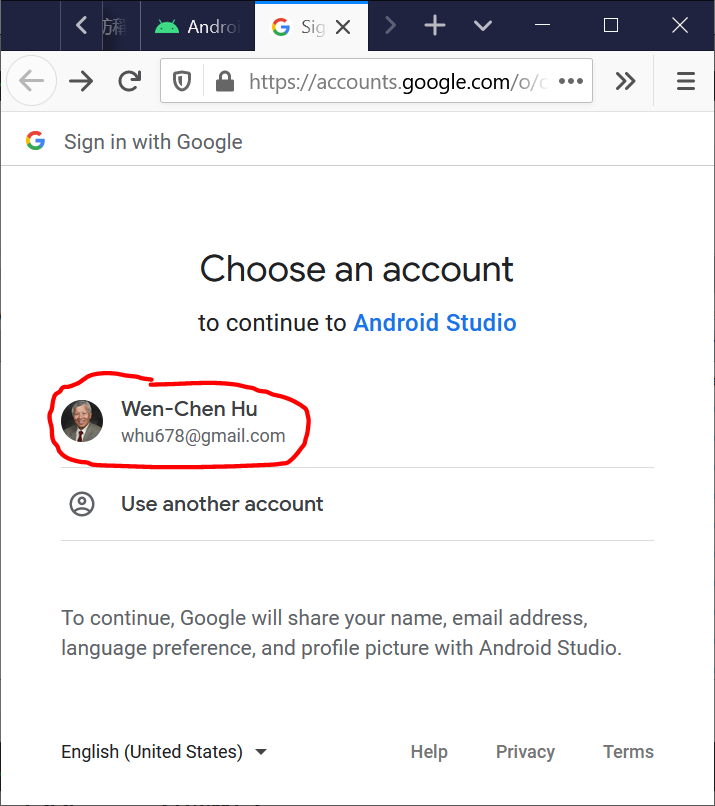
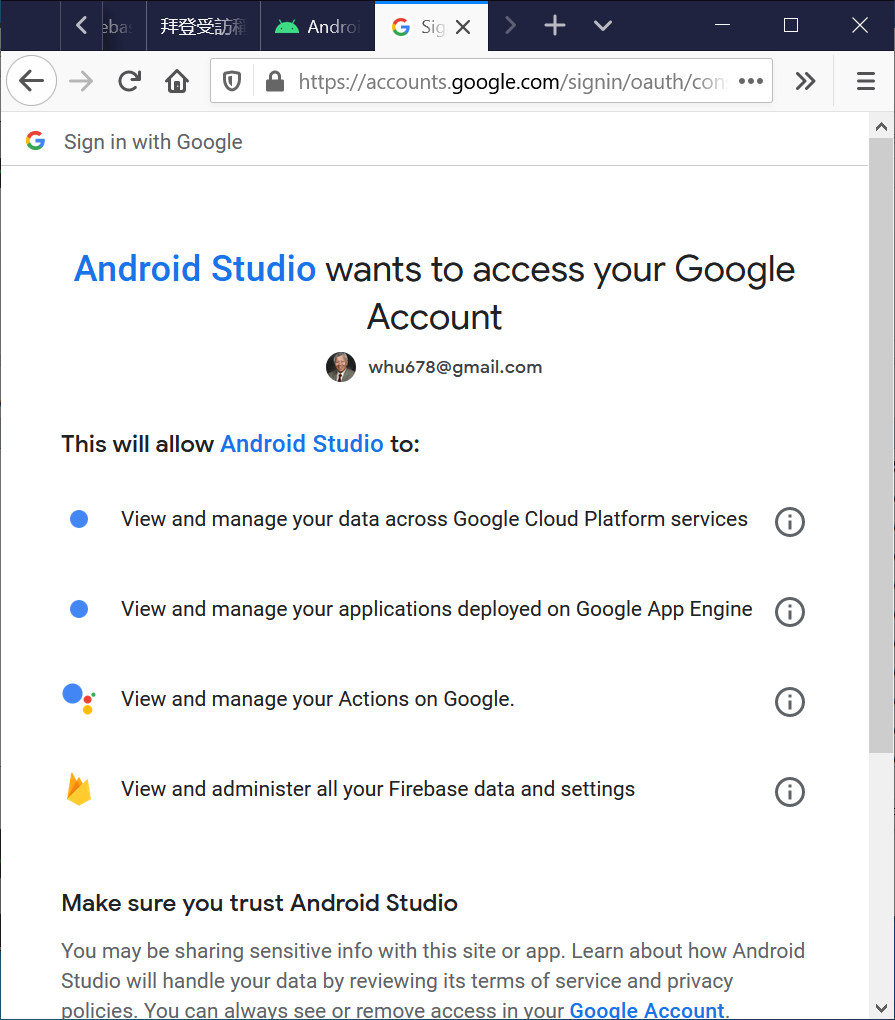
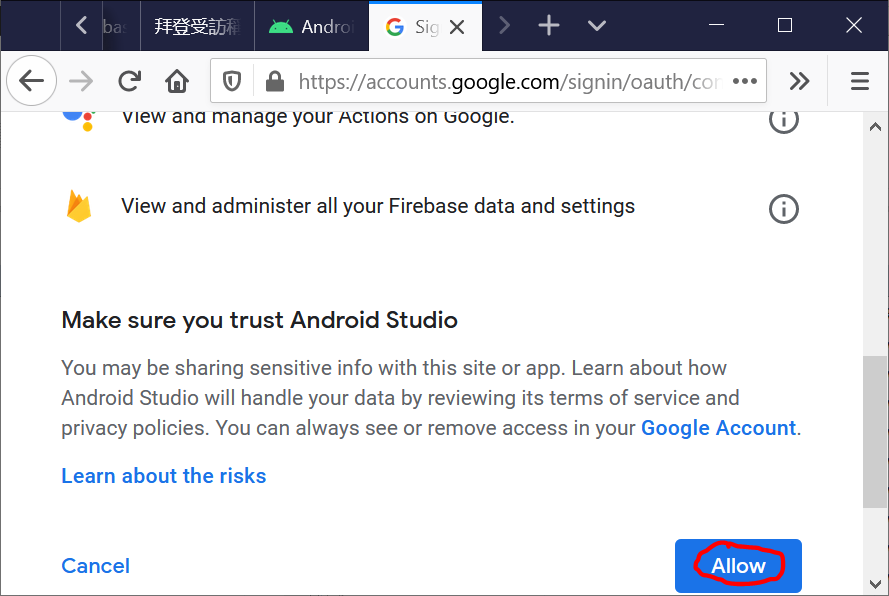
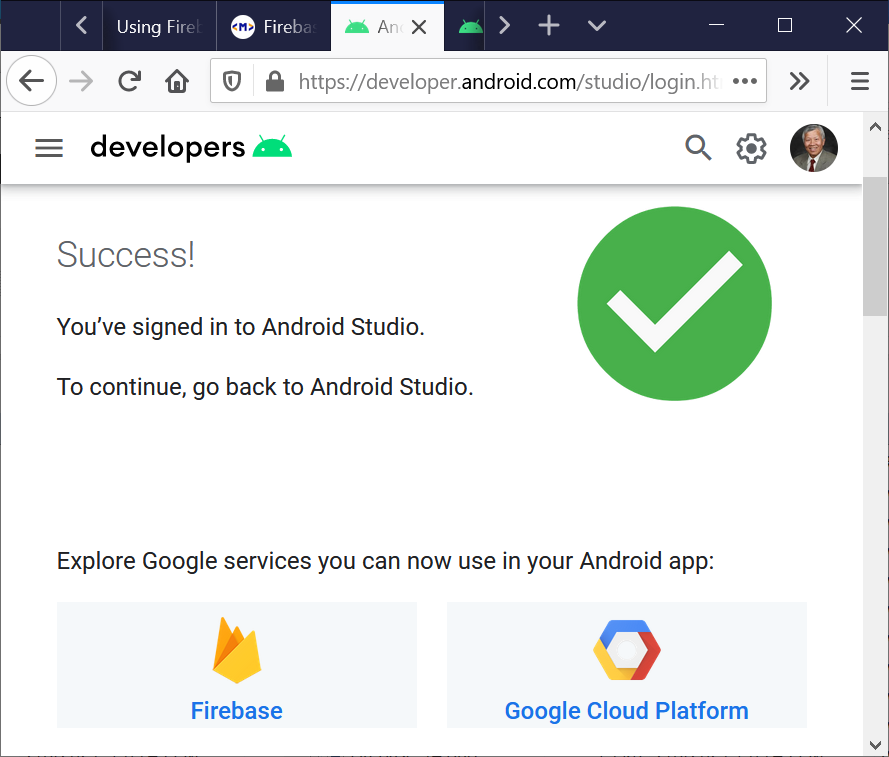
In Android Studio, log in with your email address.
You can find the login button at the top right corner of the Android Studio.
(Remember the email address that you use here.)
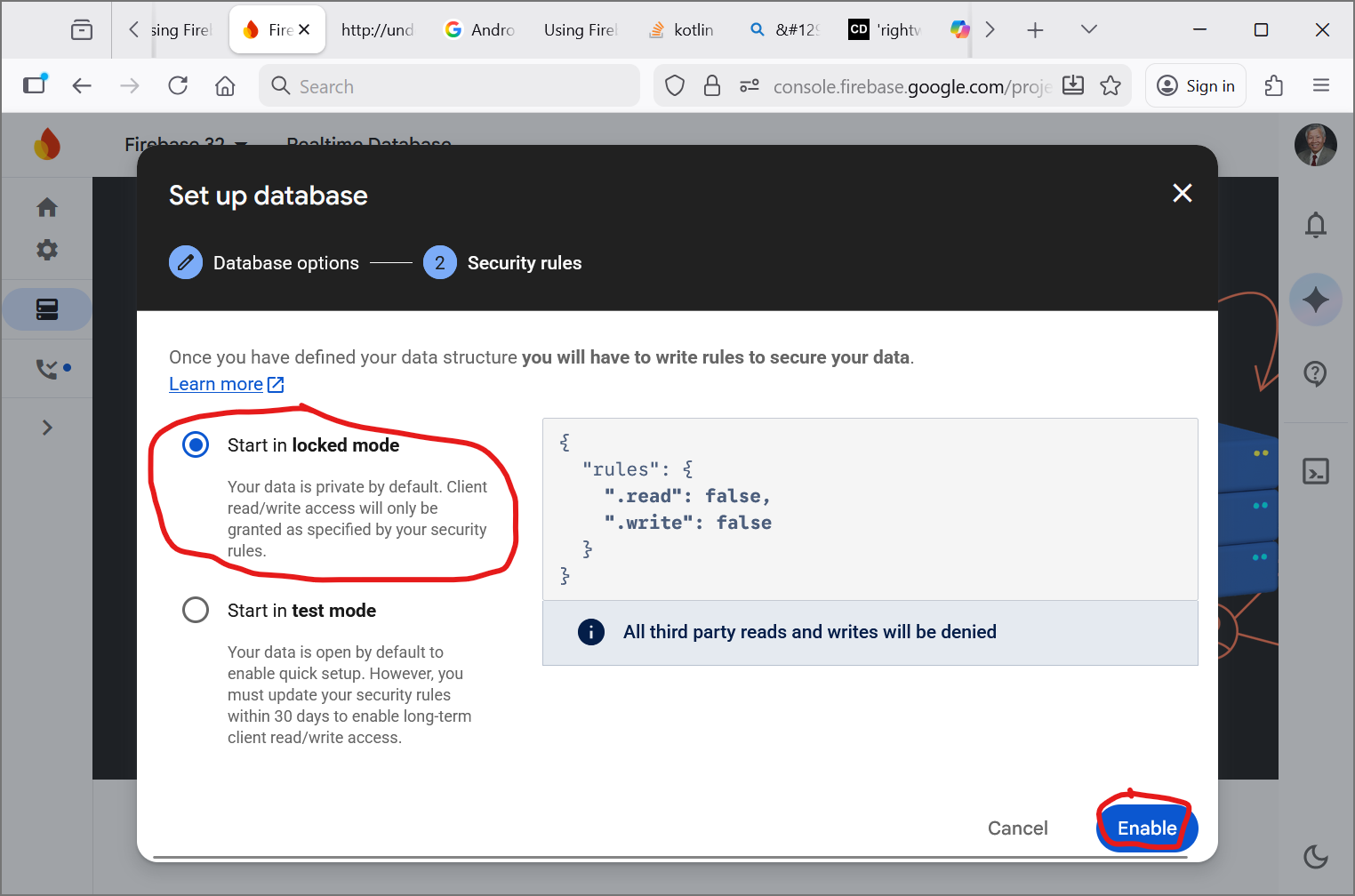
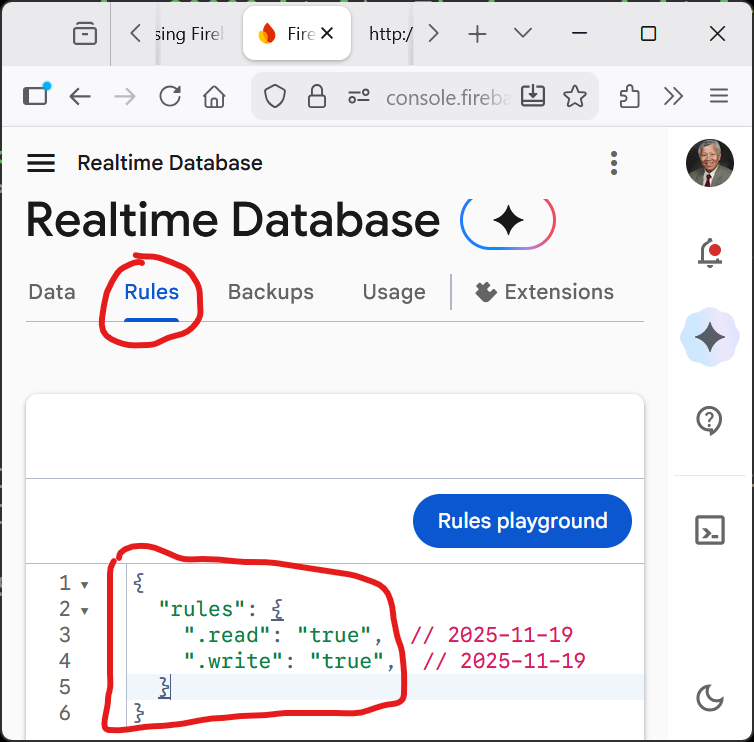
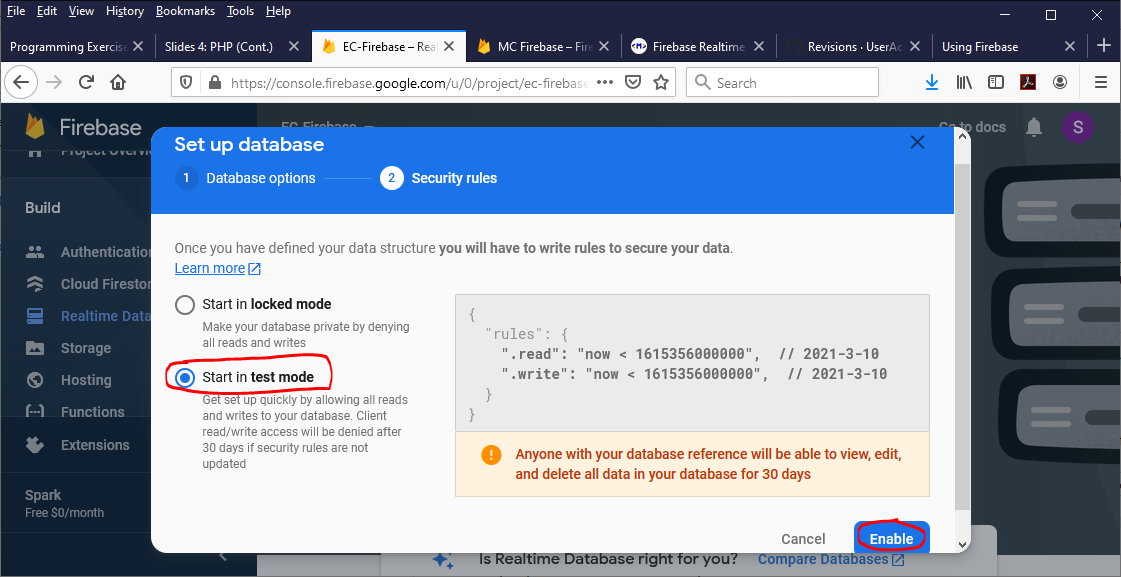
If you select the “Test Mode,” your code has to include authentication, which you must update your security rules within 30 days to enable long-term client read/write access.
Now, come back to your Android Studio project.
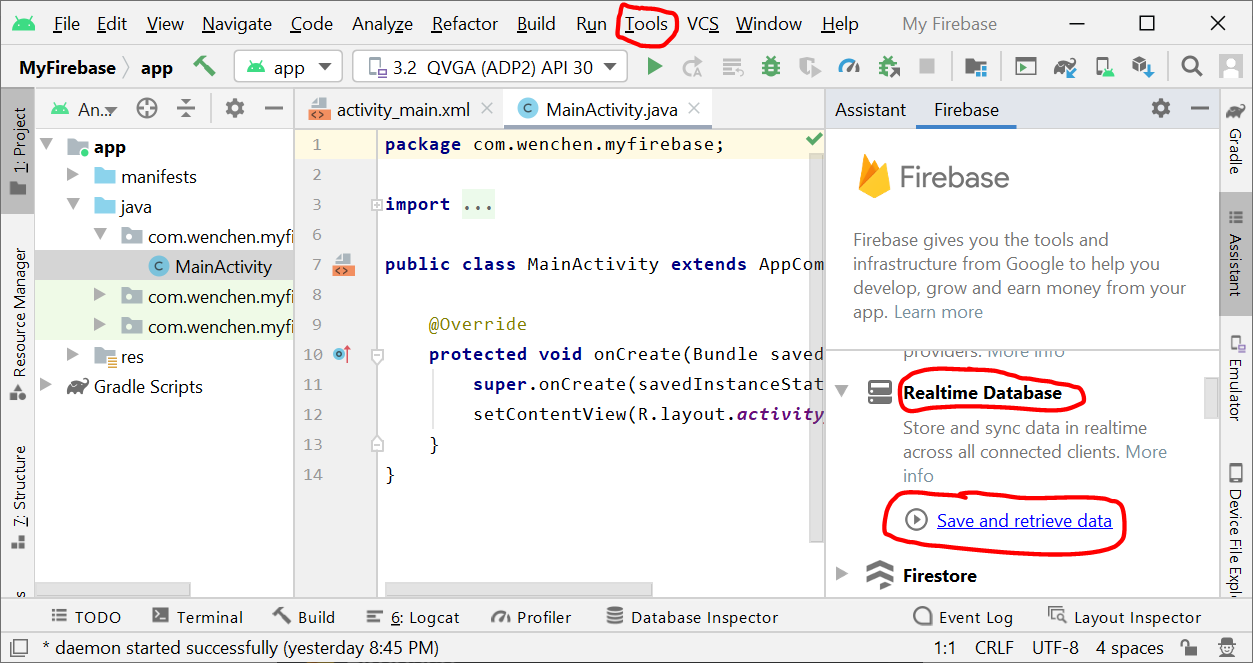
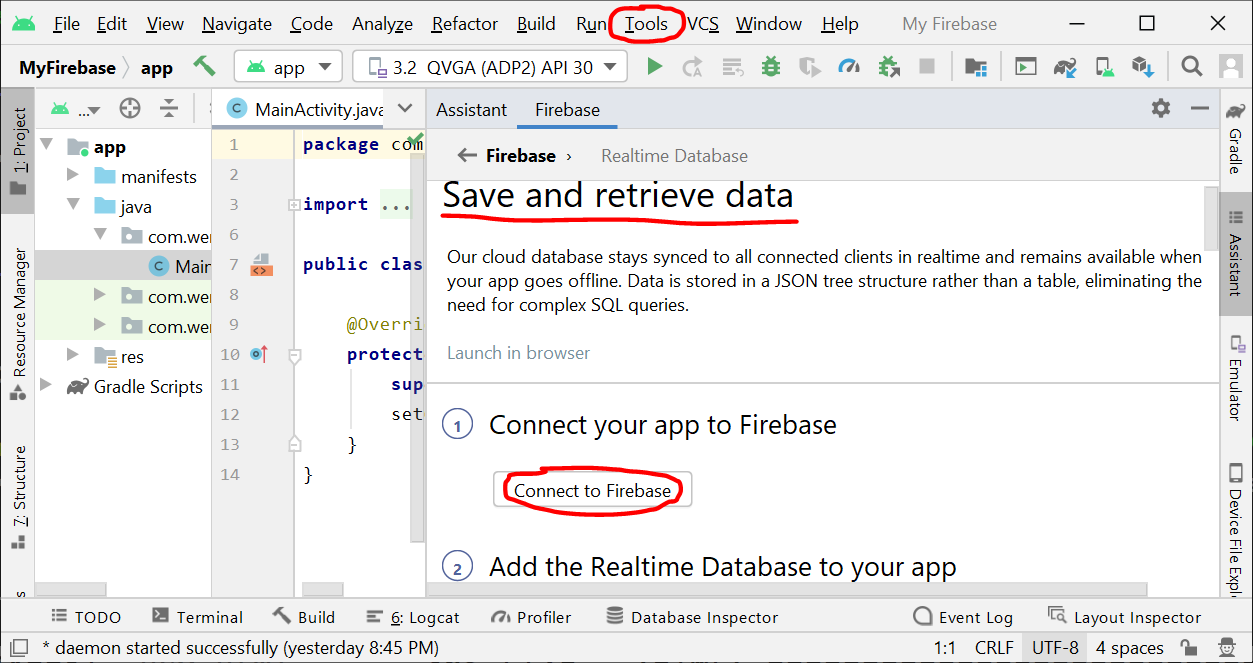
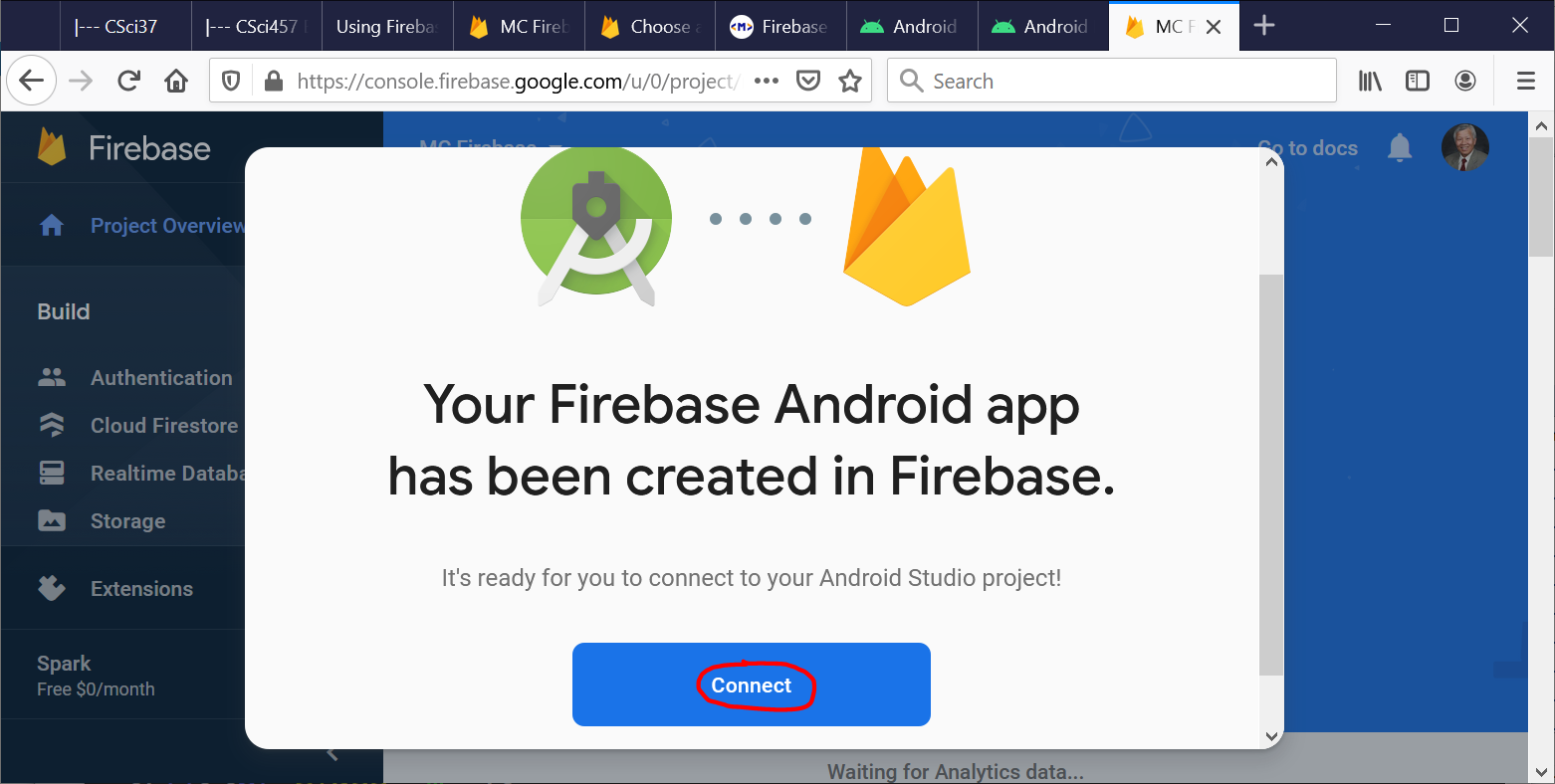
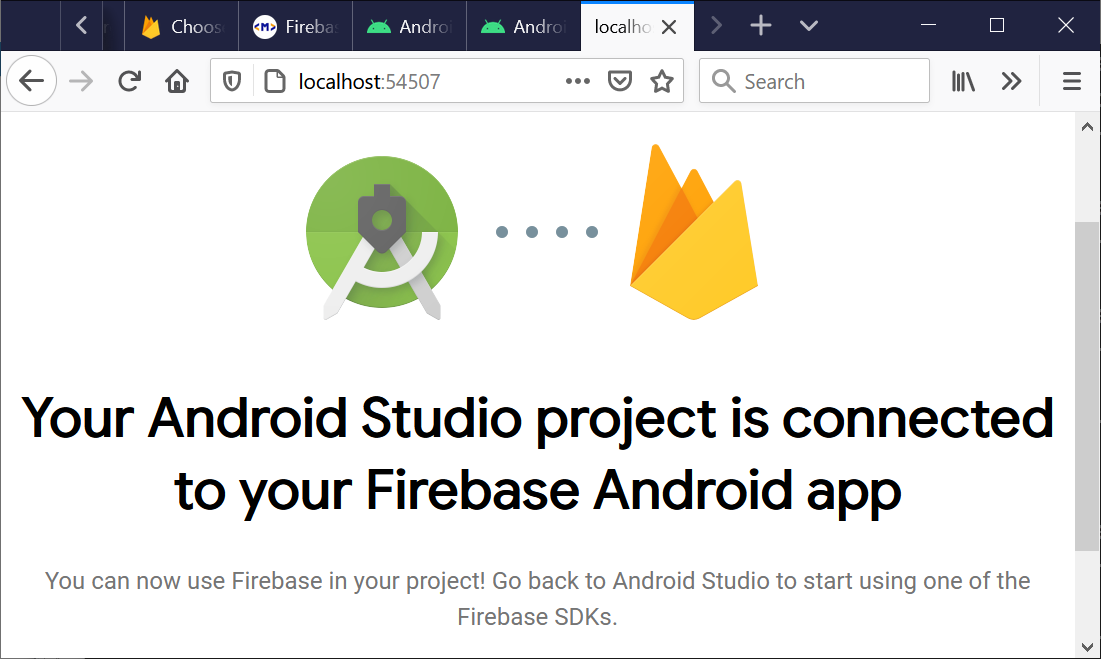
Connect the Android Studio project to the Firebase project by clicking on
➔ ➔ ➔
After that click on ,
a list of projects will be shown to you.
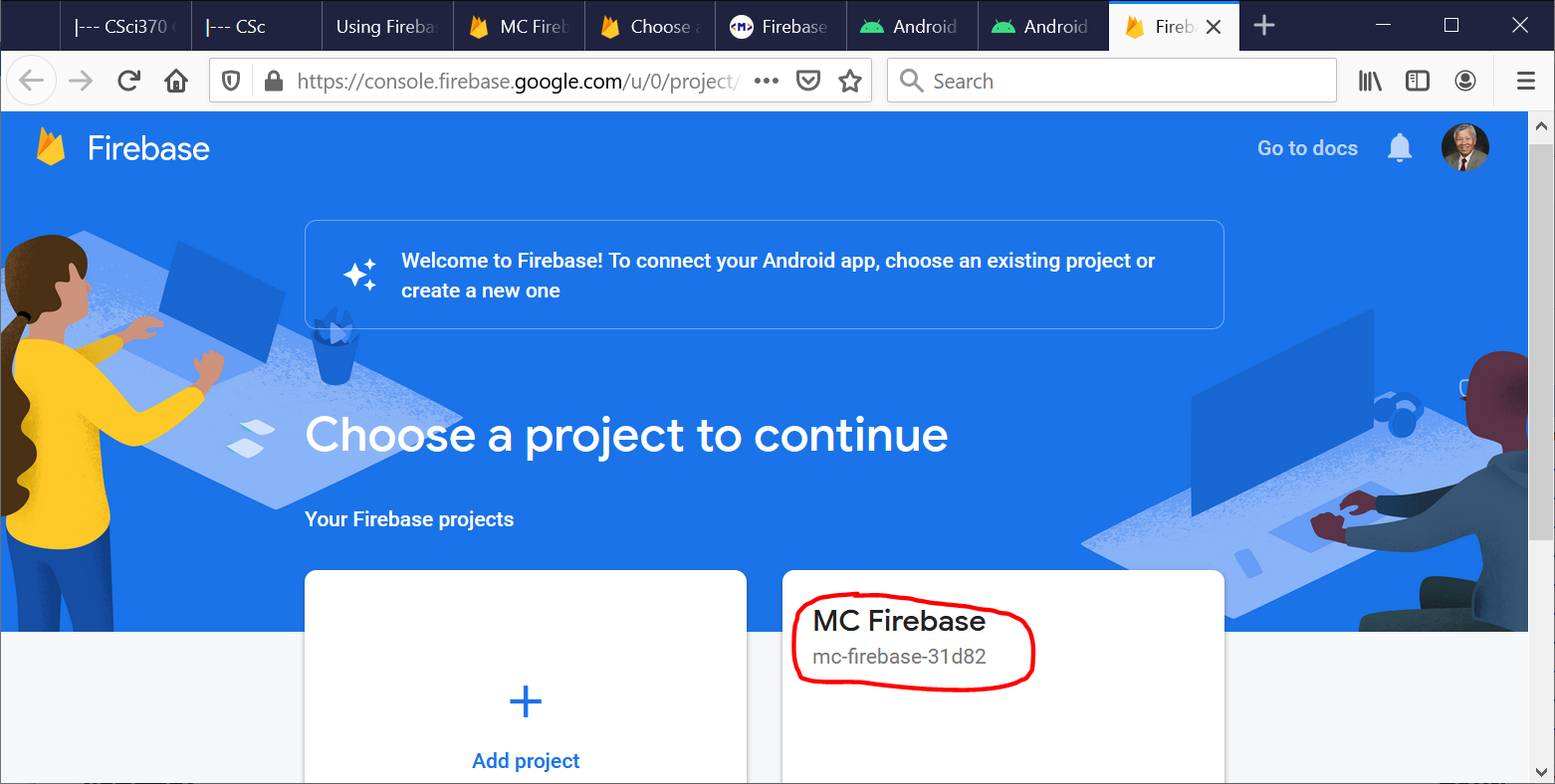
Select the project that you have created on the Firebase website and click on .
🡆
🡆
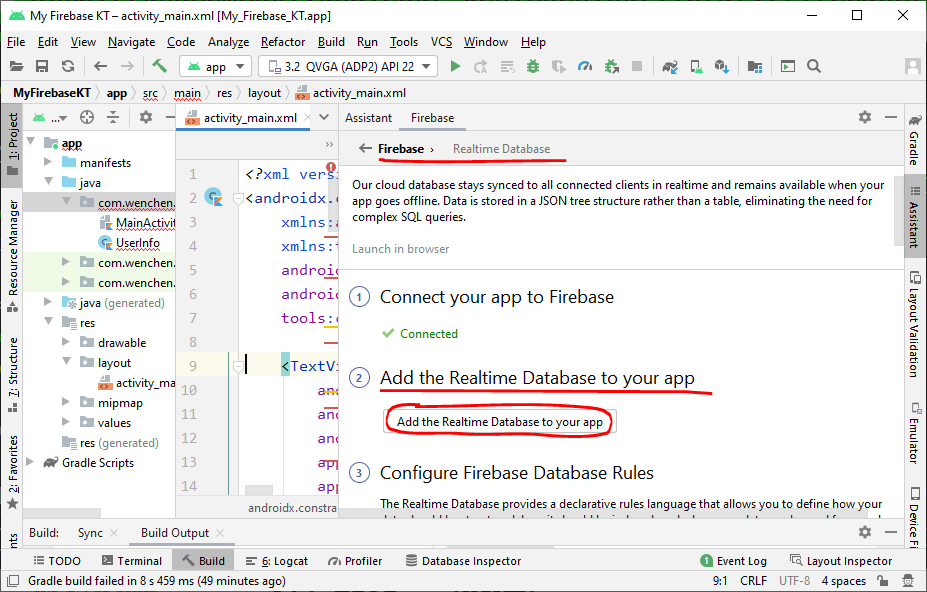
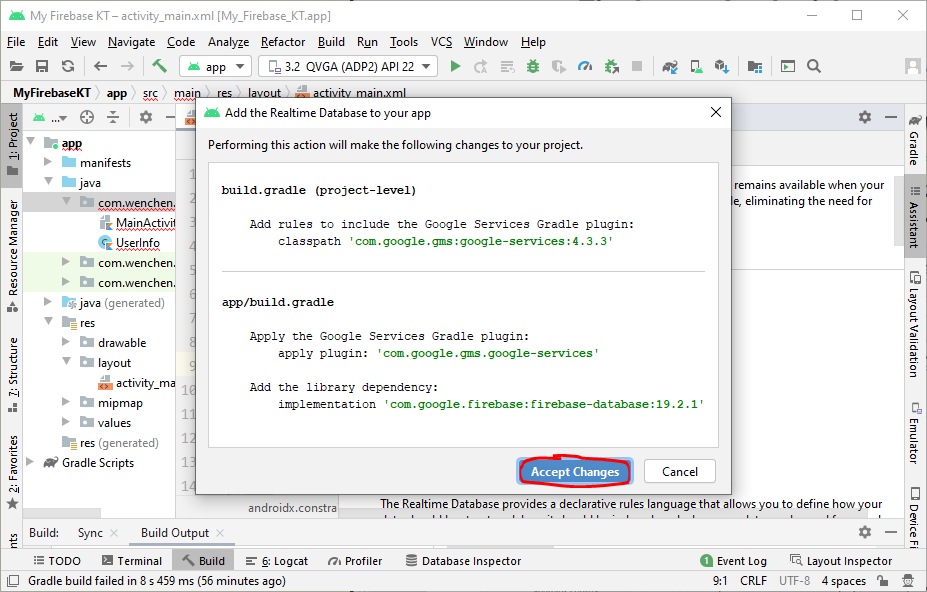
Next, you have to add the dependency of Firebase Database in your project by clicking on
➔
🡇 (after checking on )
The build.gradle (Module: My_Firebase.app) file before adding the dependencies is
Add code to the main_activity.xml file.
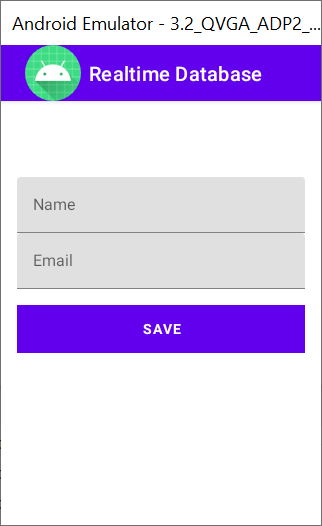
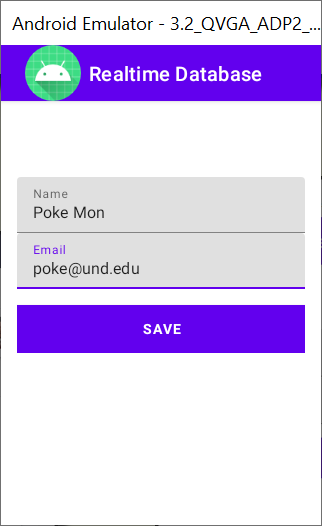
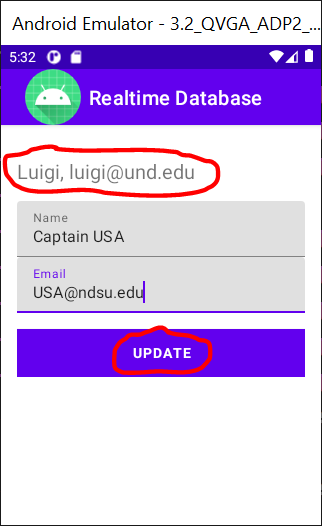
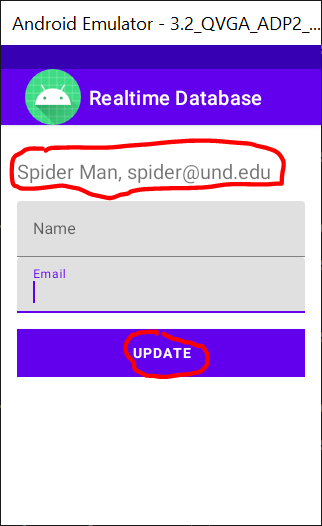
This application updates and shows the user’s profile consisting of a name and an email address.
So, we will have one TextView for showing the profile and two EditTexts for getting the new values from the user, and an update button.
The code for the main_activity.xml file is given as follows:
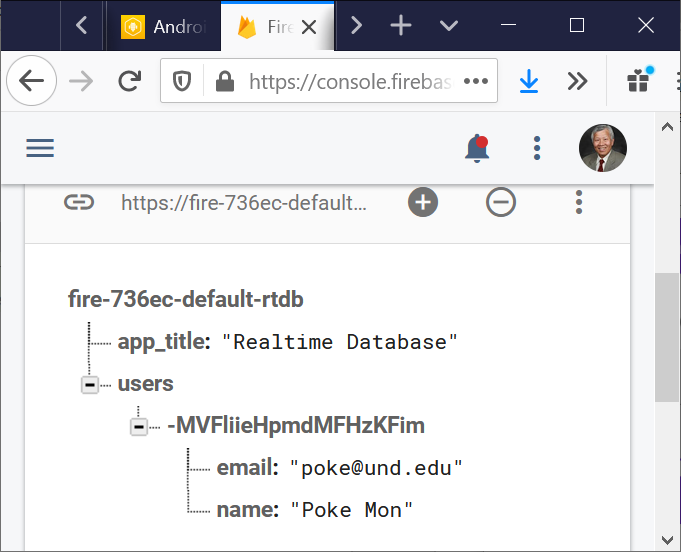
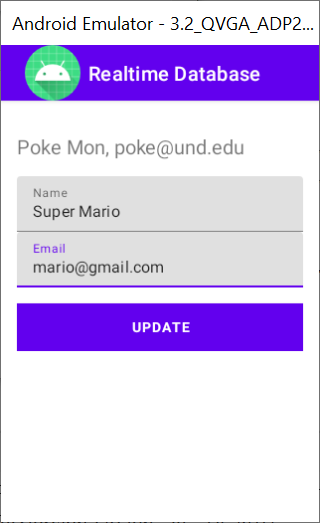
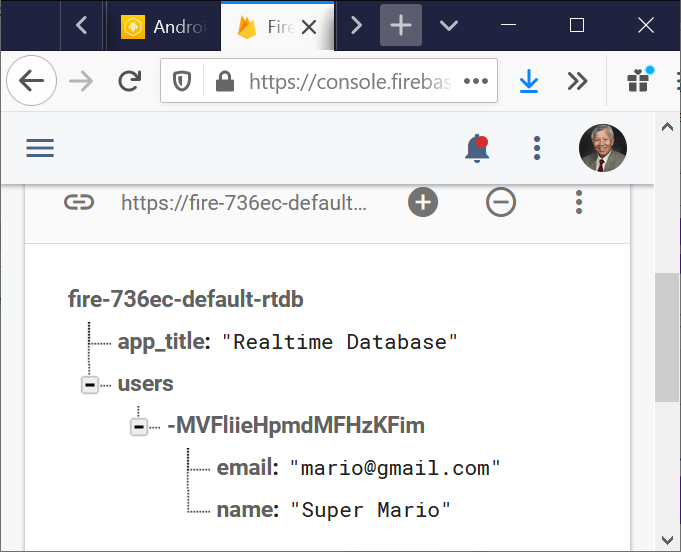
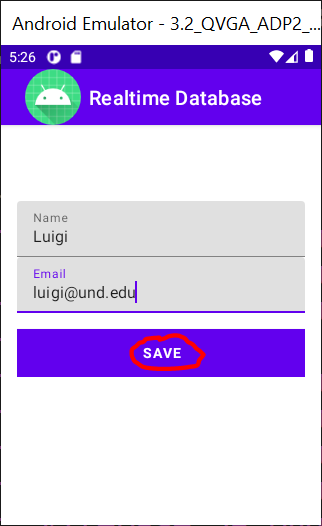
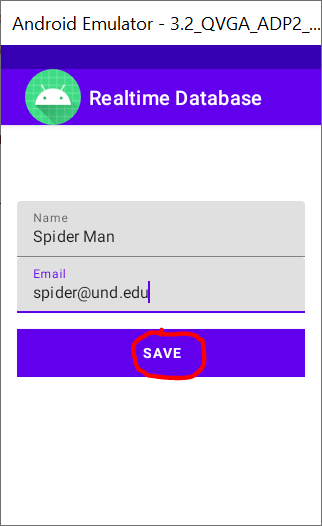
The MainActivity.java program saves the name and email address of a user in the Firebase database when starts a new session (emulator).
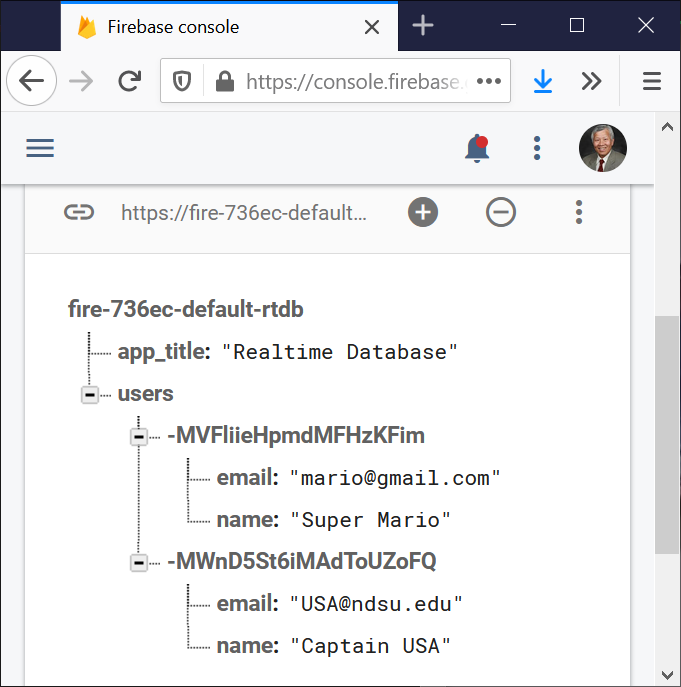
Afterwards, only the current user’s profile (name and email address) can be updated unless another session starts, and the previous profiles are not able to be updated.
 package com.wenchen.myfirebase

 import android.os.Bundle;
 import androidx.appcompat.app.AppCompatActivity;
 import android.text.TextUtils;
 import android.util.Log;
 import android.view.View;
 import android.widget.Button;
 import android.widget.EditText;
 import android.widget.TextView;

 import com.google.firebase.database.DataSnapshot;
 import com.google.firebase.database.DatabaseError;
 import com.google.firebase.database.DatabaseReference;
 import com.google.firebase.database.FirebaseDatabase;
 import com.google.firebase.database.ValueEventListener;

 public class MainActivity extends AppCompatActivity {
   private static final String TAG = MainActivity.class.getSimpleName( );
   private TextView txtDetails;
   private EditText inputName, inputEmail;
   private Button btnSave;
   private DatabaseReference mFirebaseDatabase;
   private FirebaseDatabase mFirebaseInstance;
   private String userId;

   @Override
   protected void onCreate( Bundle savedInstanceState ) {
     super.onCreate( savedInstanceState );
     setContentView( R.layout.activity_main );

     // Displaying toolbar icon
     // The action bar does not work, so they are commented out.
     androidx.appcompat.app.ActionBar actionBar = getSupportActionBar( );
     if ( actionBar != null ) {
       // You can safely call methods on the ActionBar now
       actionBar.setDisplayHomeAsUpEnabled( true );
       actionBar.setIcon( R.mipmap.ic_launcher );
     }
     else {
       // Handle the case where the ActionBar is not available
       // (e.g., log an error, use a different UI element, etc.)
       Log.e( "MyFirebase", "Action bar is null, cannot set properties");
     }
     // getSupportActionBar( ).setDisplayShowHomeEnabled( true );
     // getSupportActionBar( ).setIcon( R.mipmap.ic_launcher );

     txtDetails = (TextView) findViewById( R.id.txt_user );
     inputName  = (EditText) findViewById( R.id.name );
     inputEmail = (EditText) findViewById( R.id.email );
     btnSave    = (Button)   findViewById( R.id.btn_save );

     mFirebaseInstance = FirebaseDatabase.getInstance( );
     // Getting reference to 'users' node
     mFirebaseDatabase = mFirebaseInstance.getReference( "users" );
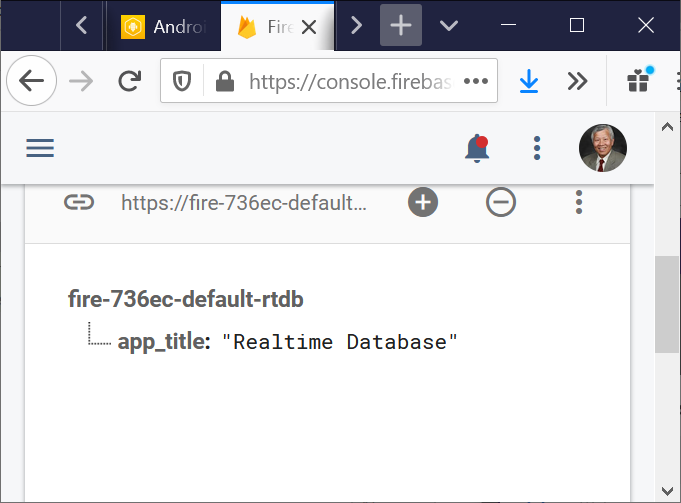
     // Storing app title to 'app_title' node
     mFirebaseInstance.getReference( "app_title" ).setValue( "Realtime Database" );

     // app_title change listener
     mFirebaseInstance.getReference( "app_title" ).addValueEventListener(
       new ValueEventListener( ) {
         @Override
         public void onDataChange( DataSnapshot dataSnapshot ) {
           Log.e( TAG, "App title updated" );
           String appTitle = dataSnapshot.getValue( String.class );

           // Updating toolbar title
           // The action bar does not work, so they are commented out.
           if ( actionBar != null ) {
             // You can safely call methods on the ActionBar now
             actionBar.setTitle( appTitle );
           }
           else {
             // Handle the case where the ActionBar is not available
             // (e.g., log an error, use a different UI element, etc.)
             Log.e( "MyFirebase", "Action bar is null, cannot set properties" );
           }
           // getSupportActionBar( ).setTitle( appTitle );
         }
         @Override
         public void onCancelled( DatabaseError error ) {
           // Failed to read value
           Log.e( TAG, "Failed to read app title value.", error.toException( ) );
         }
       }
     );
     // Saving or updating the user
     btnSave.setOnClickListener(
       new View.OnClickListener( ) {
         @Override
         public void onClick( View view ) {
           String name  = inputName.getText(  ).toString( );
           String email = inputEmail.getText( ).toString( );
           // Checking for already existed userId
           if ( TextUtils.isEmpty( userId ) )  createUser( name, email );
           else  updateUser( name, email );
         }
       }
     );
     toggleButton( );
   }
   // Changing button text
   private void toggleButton( ) {
     if ( TextUtils.isEmpty( userId ) )  btnSave.setText( "Save" );
     else  btnSave.setText( "Update" );
   }
   //
   //   Creating new user node under 'users'
   //
   private void createUser( String name, String email ) {
     // TODO
     // In real apps this userId should be fetched by using auth
     if ( TextUtils.isEmpty( userId ) )
       userId  = mFirebaseDatabase.push( ).getKey( );
     User user = new User( name, email );
     mFirebaseDatabase.child( userId ).setValue( user );
     addUserChangeListener( );
   }
   //
   //   User data change listener
   //
   private void addUserChangeListener( ) {
     mFirebaseDatabase.child( userId ).addValueEventListener(
       new ValueEventListener( ) {
         @Override
         public void onDataChange( DataSnapshot dataSnapshot ) {
           User user = dataSnapshot.getValue( User.class );
           // Check for null
           if ( user == null ) {
             Log.e( TAG, "User data is null!" );
             return;
           }
           Log.e( TAG, "User data is changed!" + user.name + ", " + user.email );
           // Displaying newly updated name and email
           txtDetails.setText( user.name + ", " + user.email );
           // Clearing edit text
           inputEmail.setText( "" );
           inputName.setText ( "" );
           toggleButton( );
         }
         @Override
         public void onCancelled( DatabaseError error ) {
           // Failed to read value
           Log.e( TAG, "Failed to read user", error.toException( ) );
         }
       }
     );
   }
   private void updateUser( String name, String email ) {
     // Updating the user via child nodes
     if ( !TextUtils.isEmpty( name ) )
       mFirebaseDatabase.child( userId ).child( "name"  ).setValue( name );
     if ( !TextUtils.isEmpty( email ) )
       mFirebaseDatabase.child( userId ).child( "email" ).setValue( email );
   }
 }
In order to save a user profile, we use a model class called User.java file to store the properties of name and email address (you can add few more properties like address, phone number, etc.):